Features · At the scope
At the scope.
Live view, focus and alignment, the Moon, and the planets from one page.
At the scope
Live view, focus and alignment.
Watch the stack grow, and check star shapes at full resolution while there's still time to fix them.
Watch the picture build
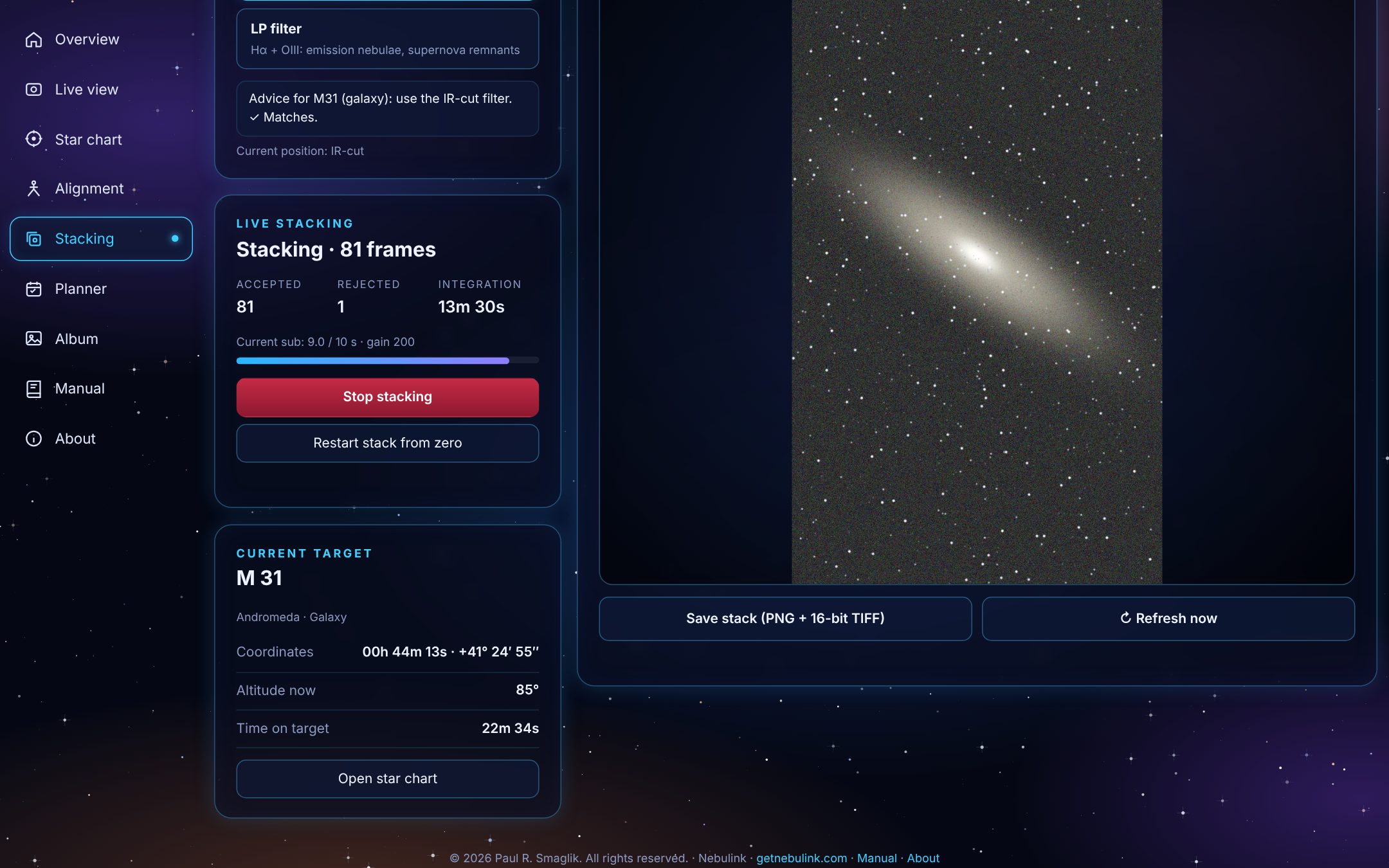
See the stacked image grow as frames come in, with the frame count and total exposure beside it. Switch filters, stop or restart the stack, and save the result as a PNG or a 16-bit TIFF ready for processing.
- A new picture with every stacked frame, arriving in seconds
- Fast finished JPEGs, or full-quality 16-bit data when you want it
- Works with the latest Seestar firmware
Check star shapes in every corner
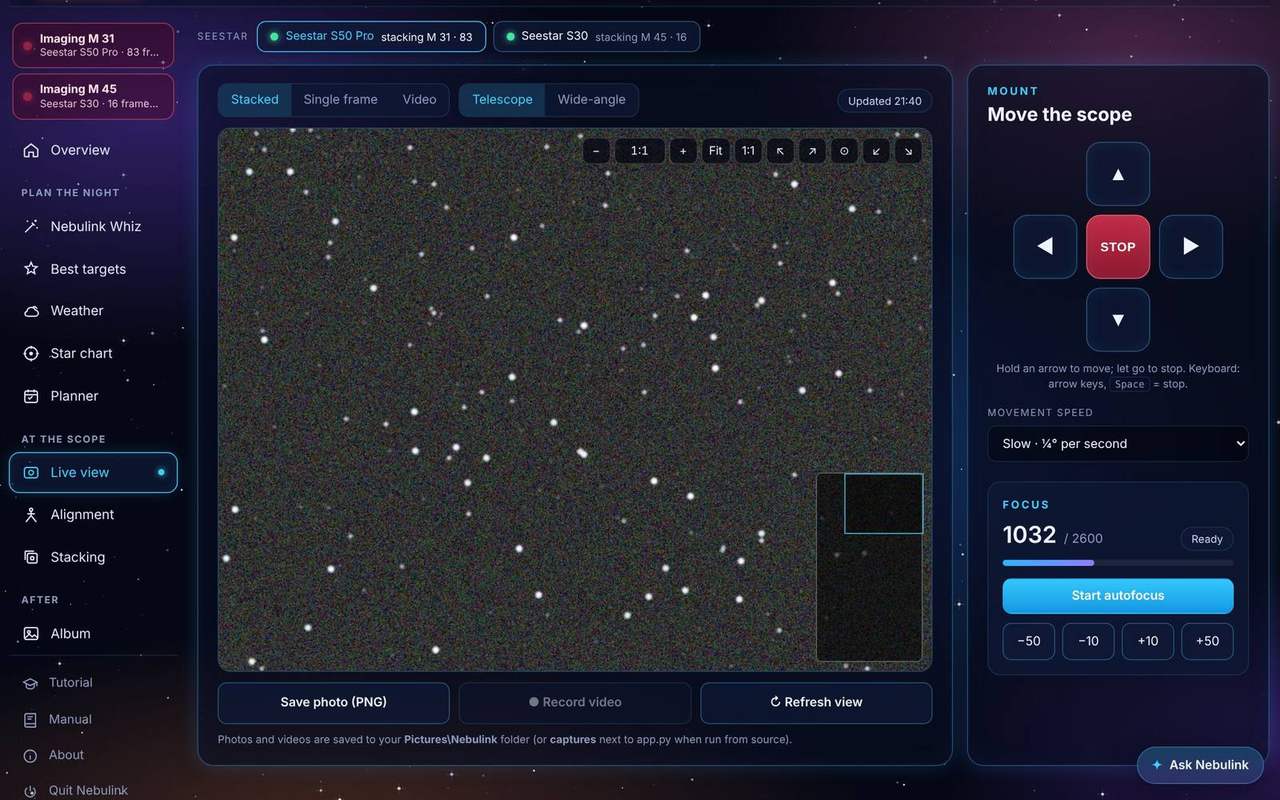
Zoom into Live view or the live stack and jump straight to each corner. Zoomed in, Nebulink fetches that part of the frame at the camera's full resolution, so you can spot tilt, coma or a tracking problem while there's still time to fix it.
- Mouse wheel, double-click, Fit and 1:1
- One-click jumps to the four corners and the center
- The zoom stays put as new frames arrive
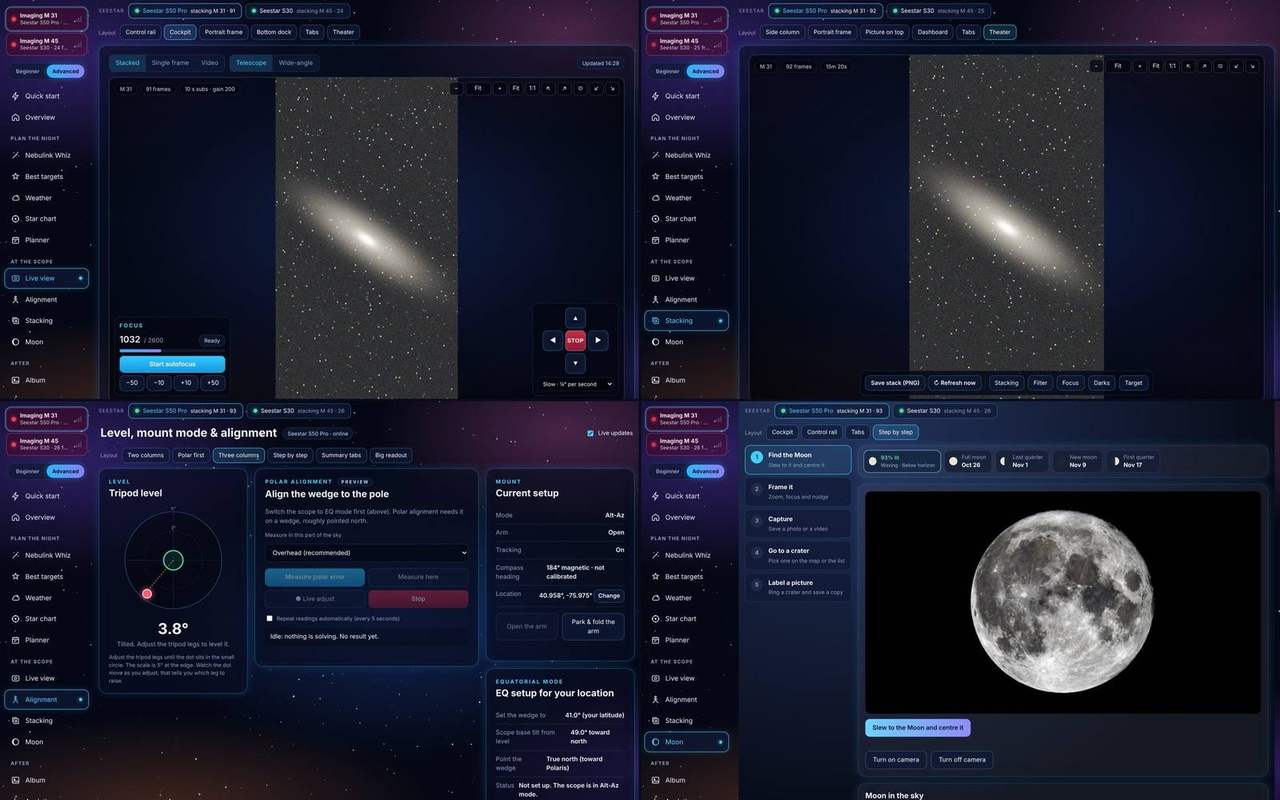
Lay it out your way
Some like the picture big, others like every control in sight. Live view, Stacking, Alignment, the Moon and the Planets page each come in several layouts, from a column of cards beside the picture to a Theater that fills the window. The buttons do the same in every layout; only the arrangement changes.
- Live view: Control rail, Cockpit, Portrait frame, Bottom dock, Tabs and Theater
- Stacking: Side column, Portrait frame, Picture on top, Dashboard, Tabs and Theater
- Alignment: Two columns, Polar first, Three columns, Step by step, Summary tabs and Big readout
- The Moon: Cockpit, Control rail, Tabs and Step by step
- Planets: Cockpit, Control rail, One column, Tabs and Step by step
- Pick one with the Layout buttons; Nebulink remembers it
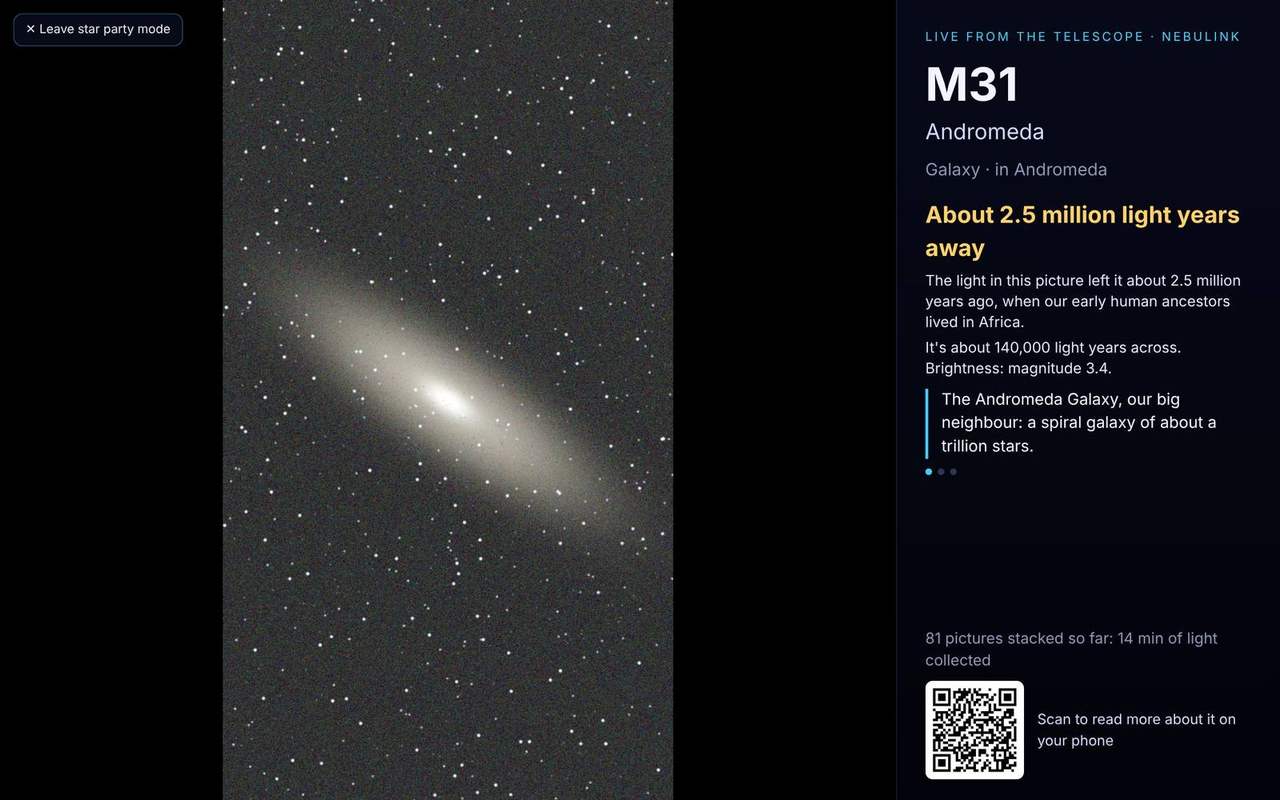
Show the sky to your guests
Star party mode fills the screen with the live stack, on the PC or a projector, with the object's name, how far away it is and when the light you're seeing set off, and a QR code that opens its Wikipedia page on a visitor's phone.
- Size, brightness and a few facts that change every 15 seconds
- How much light the scope has collected so far
- It follows the scope as a plan moves from target to target
The Moon
Lunar pictures, from one page.
New in 2.2 and still being tested on real Seestars, so treat it as a first release. The Moon page takes photos and video; it doesn't stack the Moon. Planets have their own page, just below.
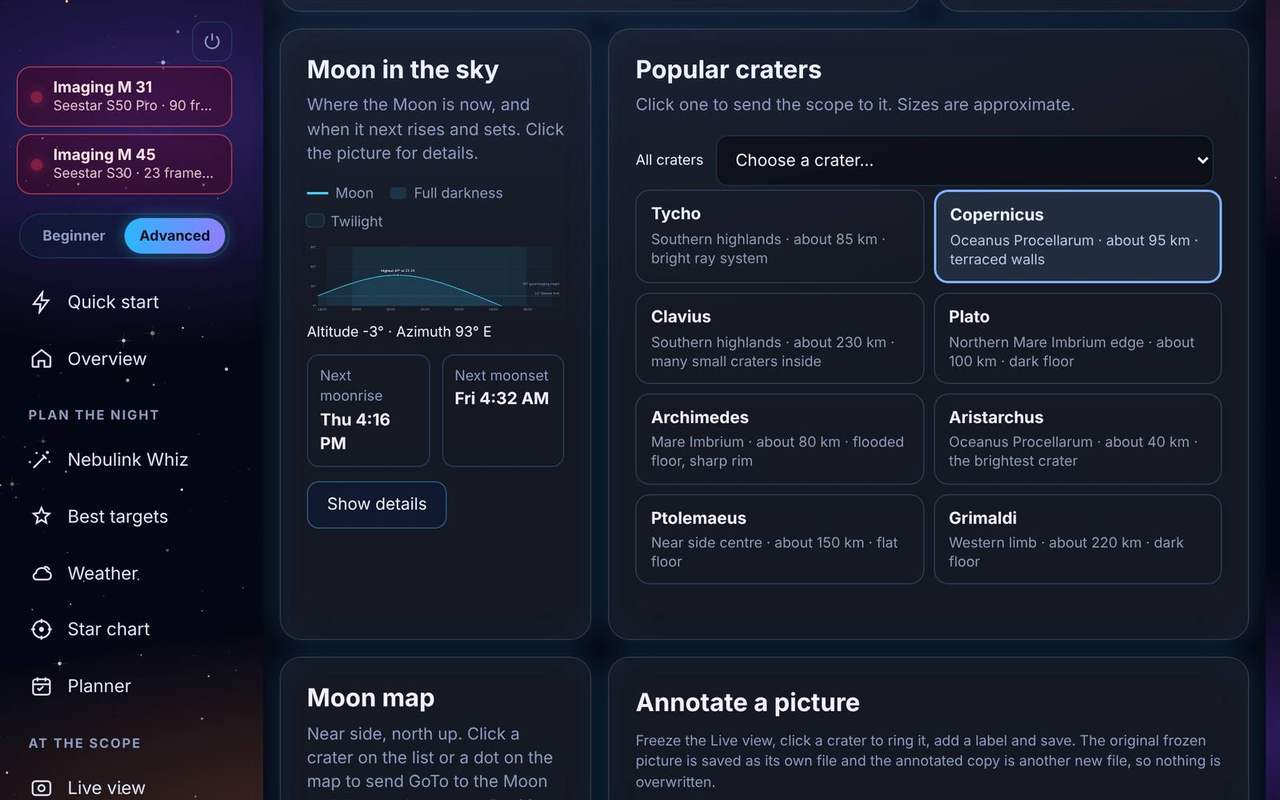
Pick a crater, and the scope goes there
A list of popular craters, 60 craters in All craters, and a NASA map of the near side with tonight's phase on it. Click a crater, on the list or the map, and Nebulink sends the scope there. Moon phases shows the phase now and the next New, First quarter, Full and Last quarter in your local time.
- Slew to the Moon and center it in one click
- Moon in the sky charts its height through the night, with its rise and set; click the chart to see it full size
- It asks first if a plan is running
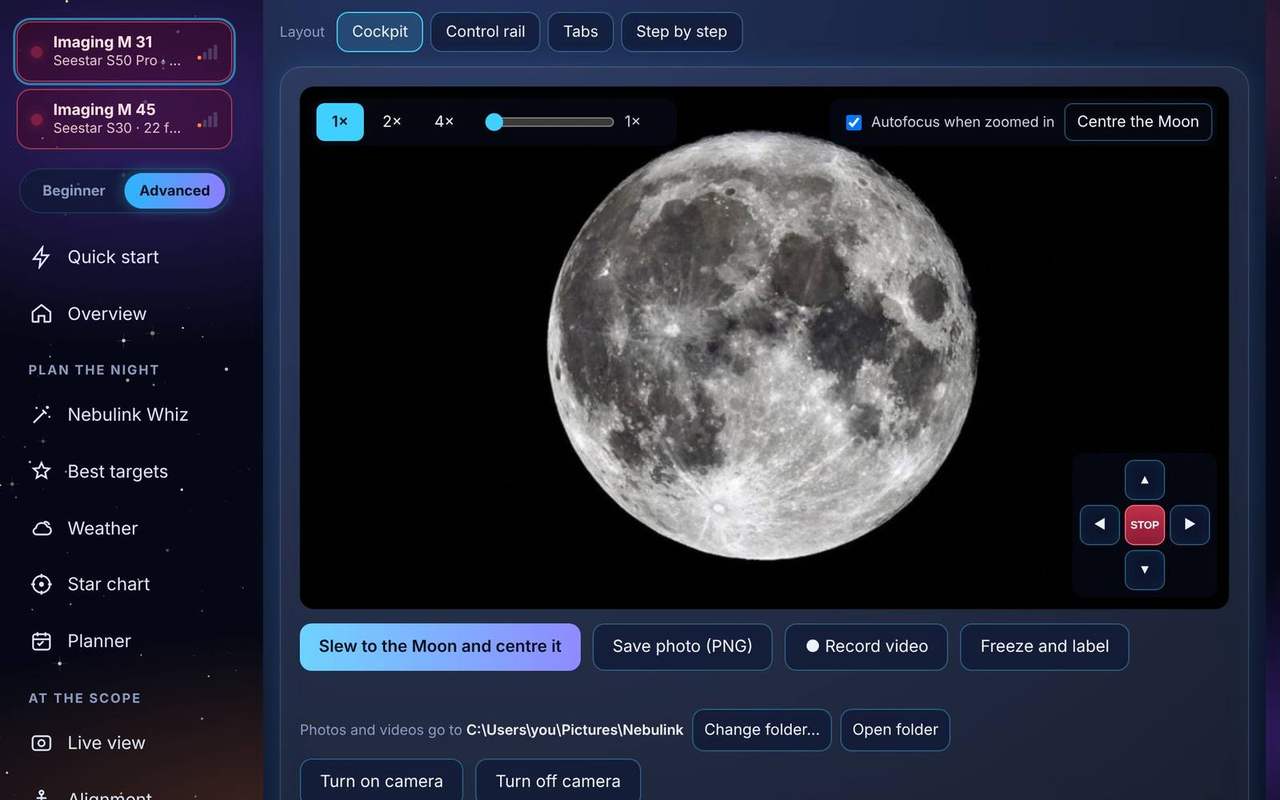
Zoom in, center it, take the picture
Live view on the Moon page zooms 1×, 2×, 4× or any amount you like, with an autofocus when you zoom in. Center the Moon finds it in the picture and moves the scope until it's in the middle, and arrow buttons nudge it. Slew to the Moon and center it, Save photo and Record video sit right under the picture.
- Exposure and gain sliders when the automatic exposure isn't right for a thin crescent or a bright full Moon
- Zoomed in, a photo keeps just the part you see
- Photos and videos go to your Pictures\Nebulink folder, or any folder you choose with Change folder…
- Four layouts, including Step by step: find the Moon, frame it, capture, go to a crater, label a picture
- The Moon and the planets are shot in the Seestar's Solar System mode, so they aren't over-exposed
- Turn the camera on and off without starting a target, with an Autofocus button and a switch to Solar System mode
- Autofocus after centering, and a Center the Moon that copes with a thin crescent or a drifting scope
- Steady view: a tick box that stacks the sharpest of the last dozen video frames to calm atmospheric shimmer
- A Look menu with Mineral color, Red, Green or Blue only, Blue minus red, and Relief; Save photo also keeps a copy of the look you chose
- A compass on the picture in N/E, RA/Dec or Alt/Az, and a corrected color balance so the Moon is no longer green
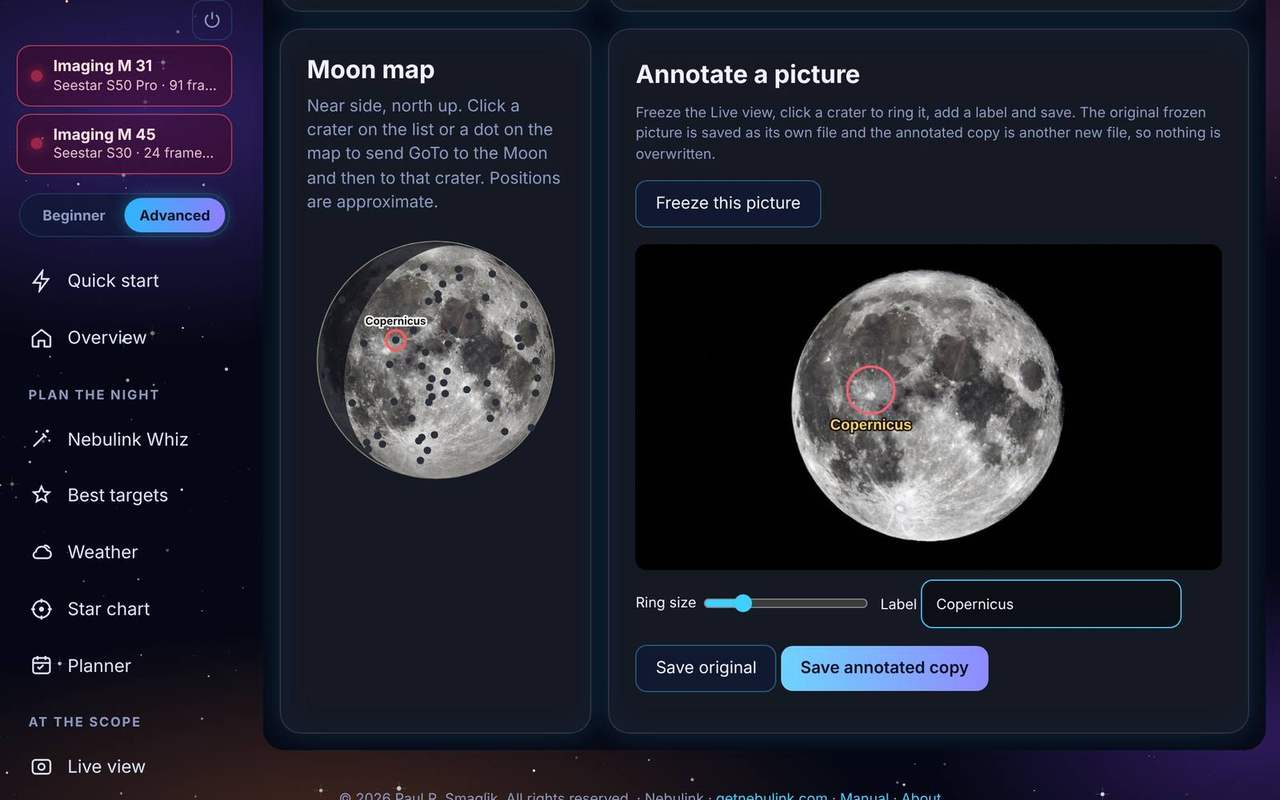
Ring a crater, add a label
Press Freeze and label, click a crater to ring it, name it and save. The frozen original is kept as its own file and the annotated copy as another, so nothing is overwritten.
- The crater ring is placed accurately, allowing for the Moon's libration; Ring off? Click the crater to place it, or Reset the ring
- Set the ring size and the label, then save the original, the annotated copy, or both
- Pick a crater from the list and its name is already in the label
- Enhance a Moon photo like any other picture; the original is always kept
Planets
Planets, from one page.
New in 2.2.58 and not yet tested on every planet, so treat it as a first release. Jupiter and Saturn are the best bets for a Seestar.
Pick a planet, GoTo, and watch it live
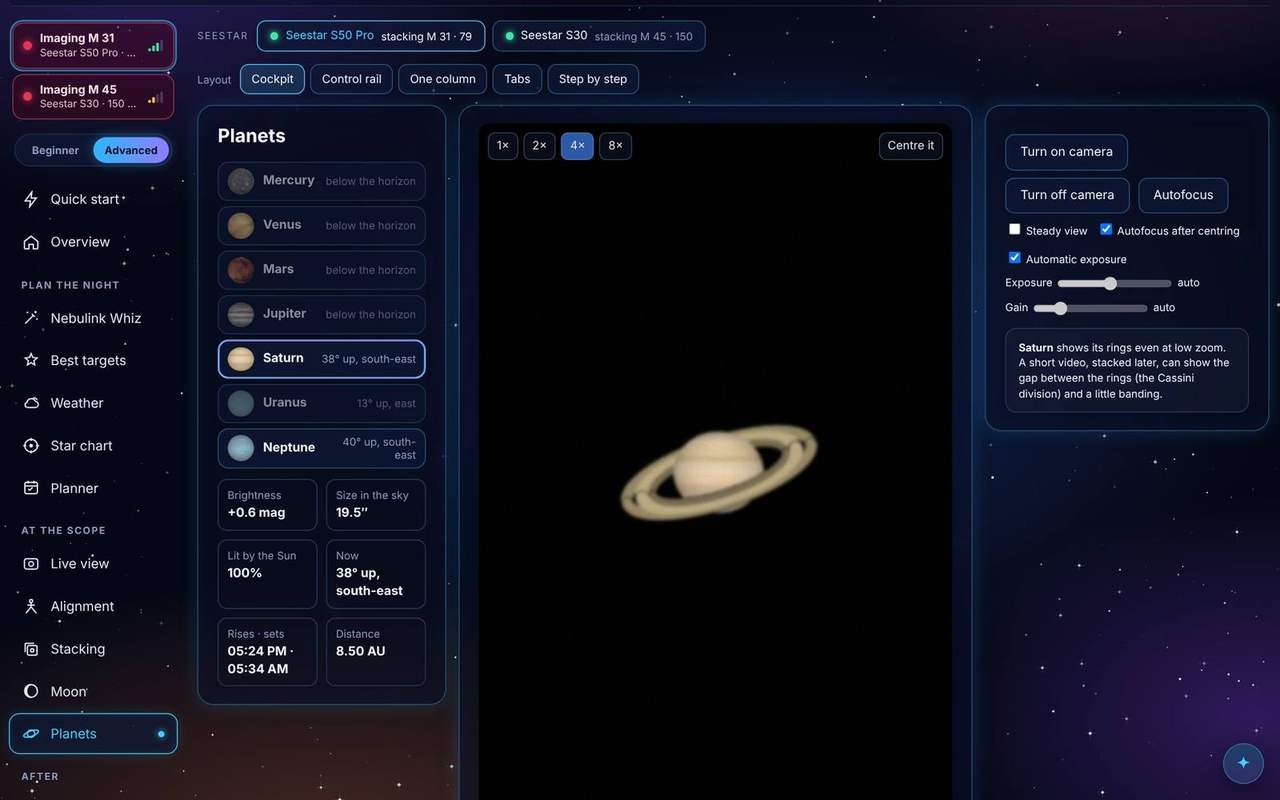
The Planets page lists the planets with how bright and how big each looks tonight, how high it is, and when it rises and sets. Pick one, press GoTo and Nebulink slews the Seestar there in Solar System mode, then centers the planet in the picture, aims again if it drifts off, and runs an autofocus.
- Live view with 1×, 2×, 4× and 8× zoom; zoomed in, a photo keeps just the part you see
- Save photo and Record video under the picture, with exposure and gain sliders and a Steady view tick box
- A tip for each planet: what to look for, and how short to keep the exposure
- Five layouts: Cockpit, Control rail, One column, Tabs and Step by step
- On the star chart, pick a planet and press its button to open this page; the Moon's button opens the Moon page