
Features · Your pictures
Your pictures.
From the Seestar to a picture worth sharing, with AI and the Helper.
Your pictures
From the Seestar to a picture worth sharing.
Copy your nights to the PC, then clean them up in Enhance.
Enhance your pictures
Open a stacked FITS file in the Album and press Enhance. One click removes the light-pollution gradient, makes the sky neutral, balances the stars and brings up the faint detail, ready to share. For the next level, AI processing removes gradients and noise and sharpens with GraXpert.
- Sliders for brightness, black point, noise, color noise, sharpening and color
- A color boost that eases off on noisy skies, so it doesn't bring up color blotches
- Crop to 16:9, square, 4:5 or any shape you like
- Compare side by side before you save
- Star reduction shrinks and dims the stars so nebulae and galaxies stand out
- Save as JPEG, PNG or 8/16-bit TIFF for Siril or PixInsight; your original is never touched
- Share picture adds the target, exposure and date, ready to post
Please note: Enhance is a quick way to get a picture you can share straight from the Album. It doesn't replace dedicated astrophotography software such as PixInsight, AstroWizard or Siril, which give you far more control. Results depend on your data, your sky and your settings, and we can't guarantee that any picture will come out perfectly. Your original files are never changed, so you can always process them elsewhere.
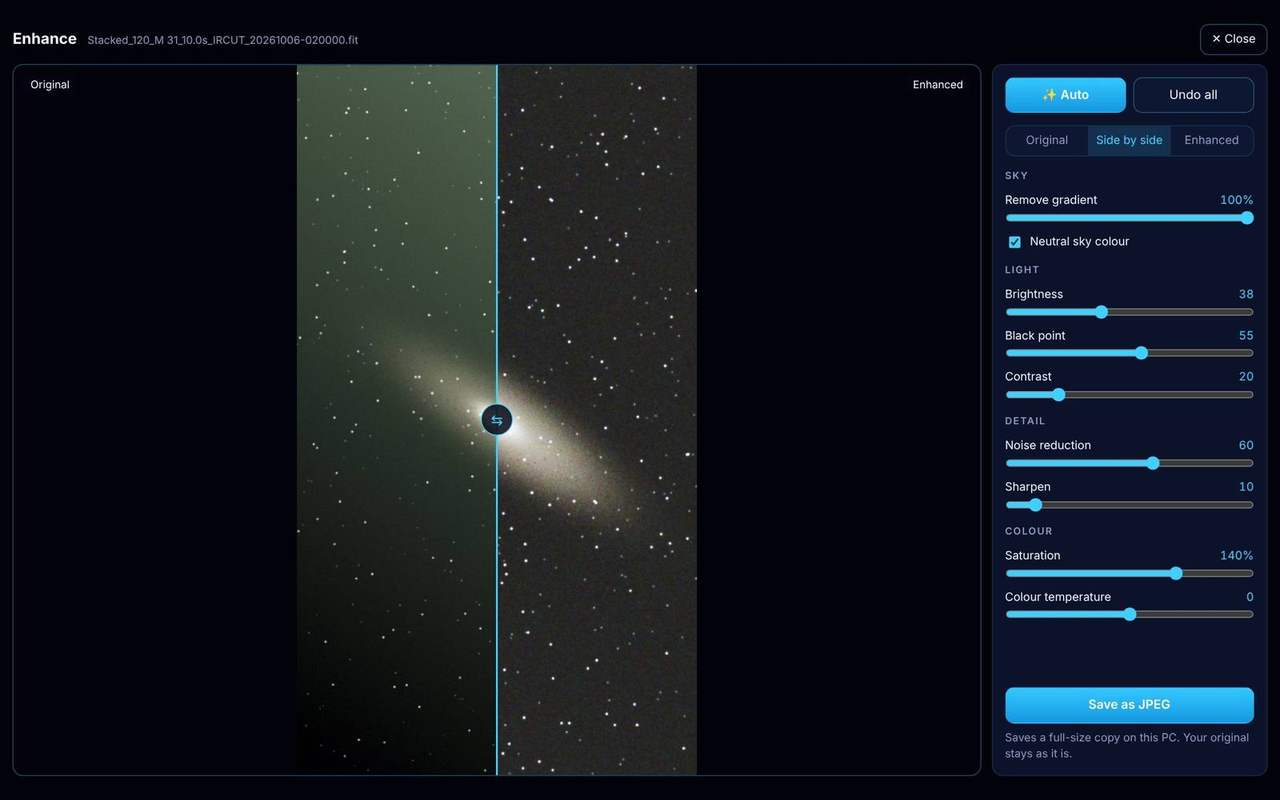
Satellite trails, gone
Enhance finds the straight streaks that satellites and planes leave across a picture, marks them and takes them out, keeping the stars they cross.
- Each trail it found is listed and marked on the picture: untick one that isn't a trail
- Missed one? Press Mark a trail and click both ends of it
- Your original picture is never changed
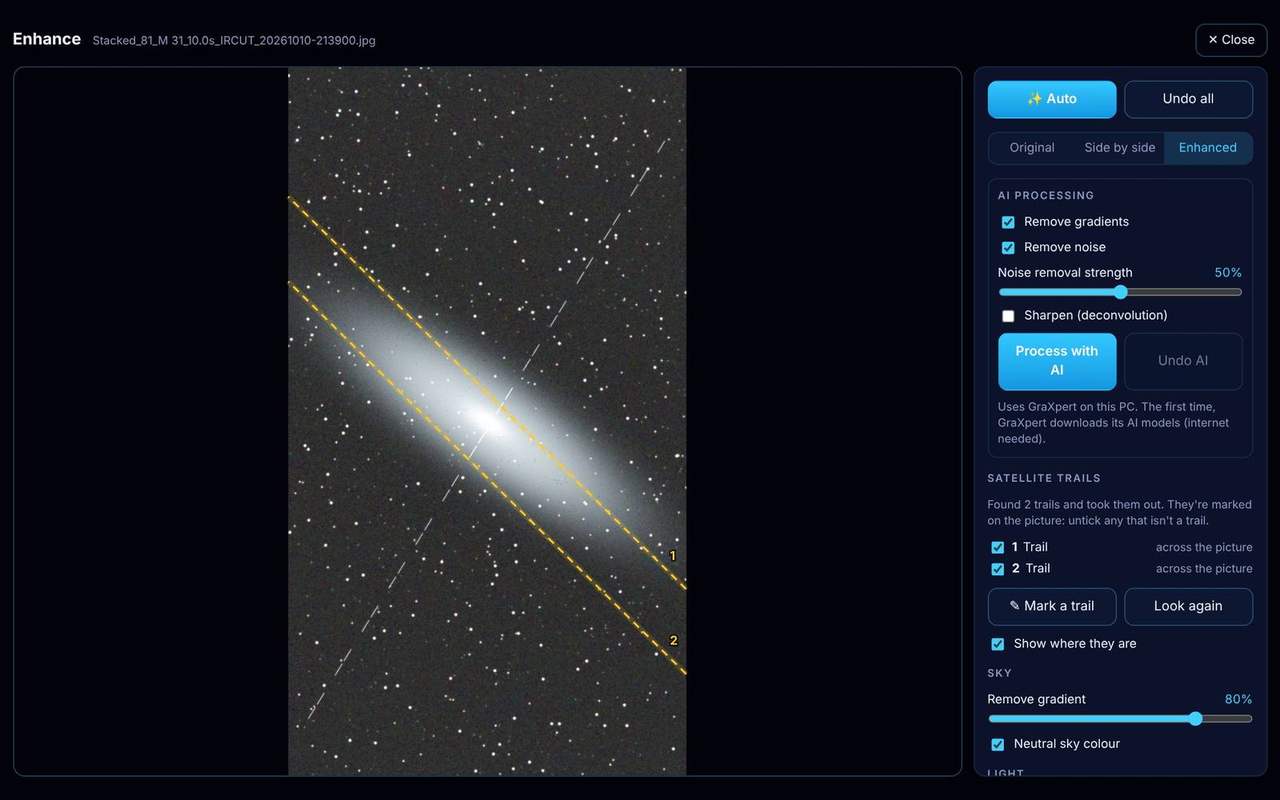
Name what's in the picture
Open a stacked picture in the Album and press Labels: Nebulink names the galaxies, nebulae, clusters and bright stars in it, and marks north and east.
- Save with labels keeps a copy with the labels drawn on it
- Hide them again with one click; the original stays as it was
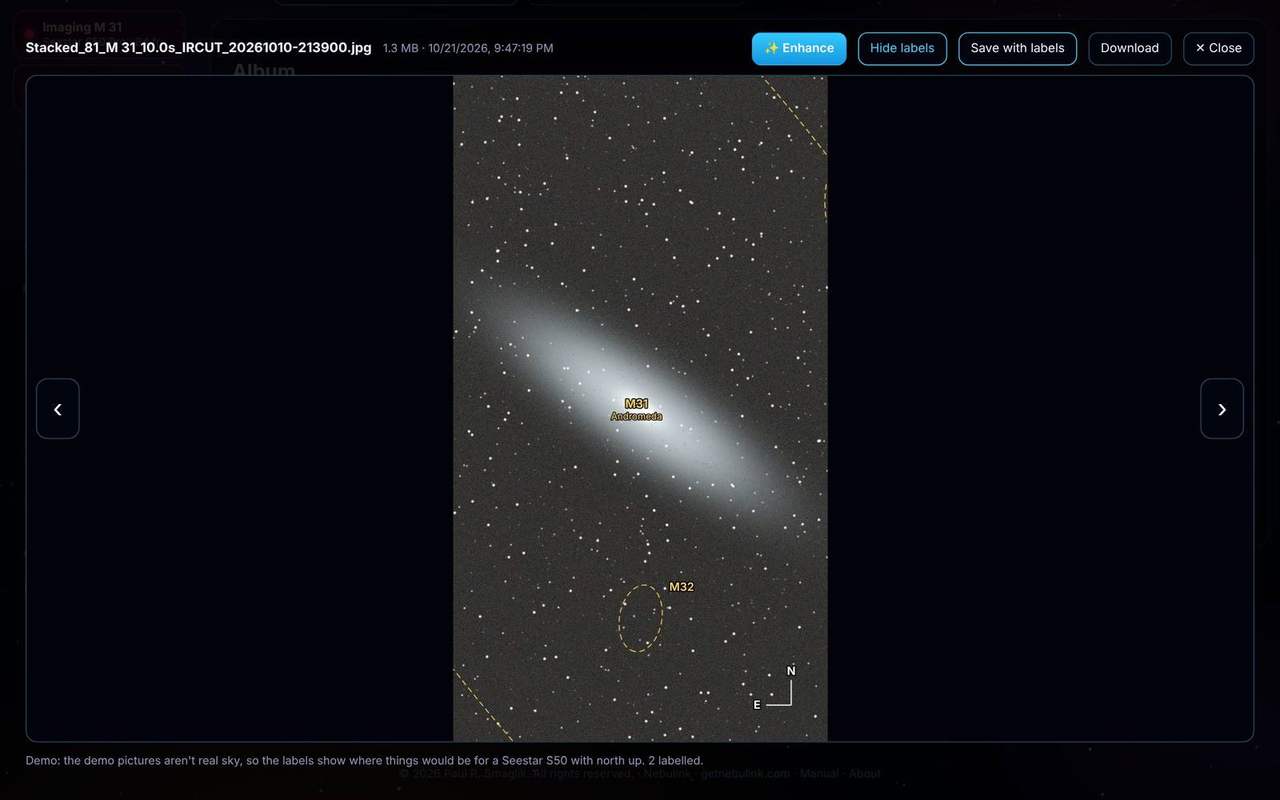
Free up your Seestar's storage
The Seestar fills up fast. Pick pictures or whole target folders in the Album and copy them to your PC, with a progress bar. If you like, Nebulink then deletes each file from the scope, but only once it's safely copied and checked.
- Shows how much space is left on the scope
- Folders keep their names and layout on your PC
- Run it again after an interruption: files already copied are skipped
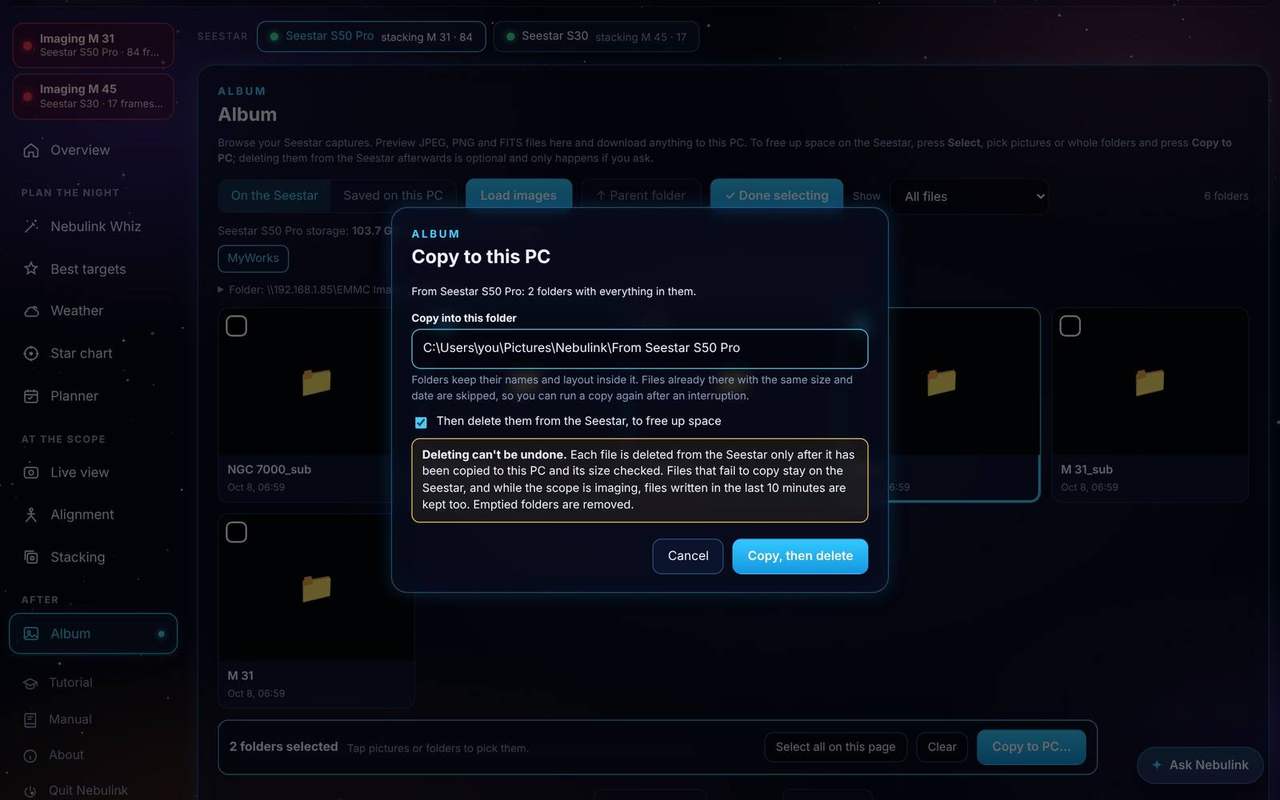
AI processing
Let AI finish the picture.
A night of stacking gives you a picture buried under light pollution, noise and soft stars. Open it in Enhance, tick what you want and press Process with AI. Trained AI models pull the gradient out, clean up the noise and tighten the stars, while you get on with your morning.
Try it
Illustration of what each step does. Real results depend on your data and your sky.
Remove gradients
The AI models the glow from streetlights and the Moon across the frame and subtracts it, leaving a dark, even sky around your target.
Remove noise
Grain and color speckle from a short night are smoothed away, while the faint nebula you spent hours collecting stays put. You choose the strength.
Sharpen
AI deconvolution undoes some of the blur from the air and the optics: rounder, tighter stars and crisper detail in galaxies and nebulae.
Help
Answers, not error codes.
A check-up for your scope, last night explained, a guided tutorial and a Helper that knows your setup.
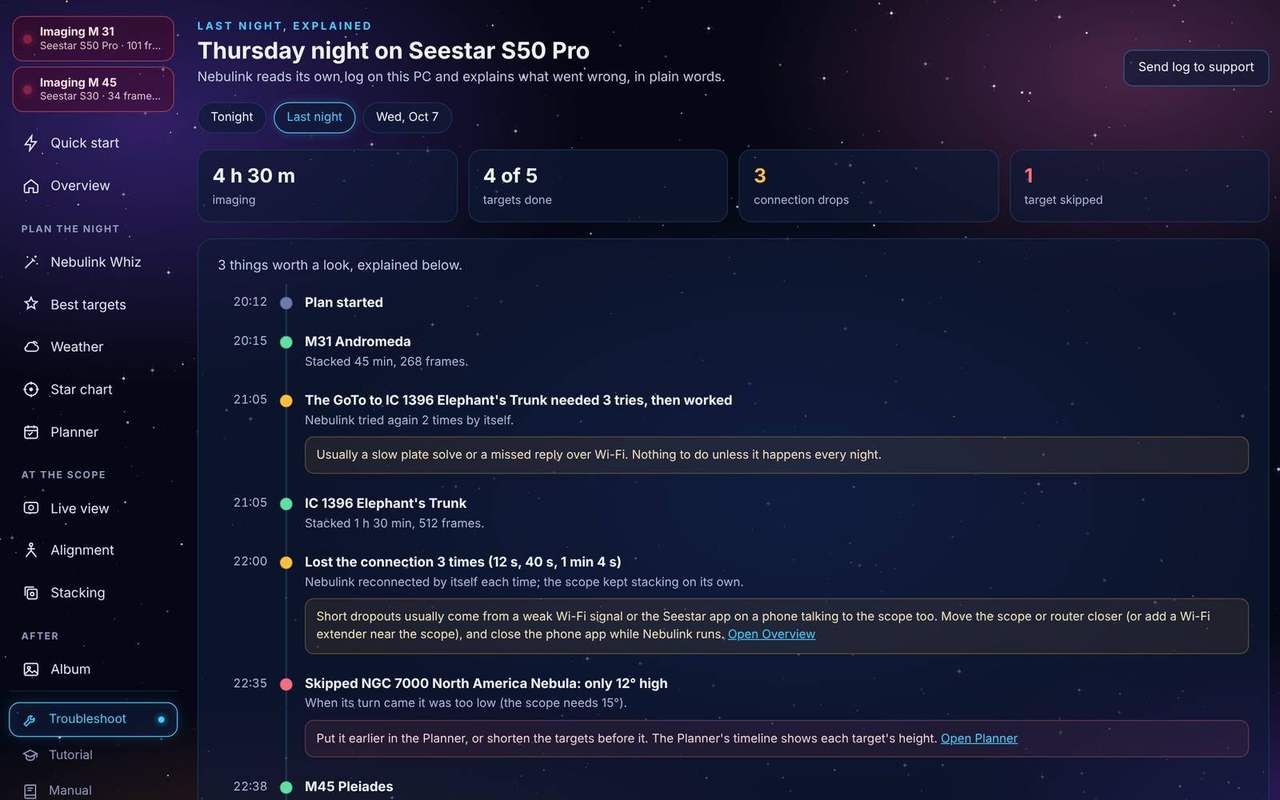
What went wrong last night, in plain words
Troubleshoot gives your Seestar a check-up (Wi-Fi, battery, storage, level, location, dew) with a fix for every problem it finds. Below it, Last night, explained reads Nebulink's own log and tells the story of the night, target by target.
- How long each target stacked, and how many frames
- GoTos that needed another try, targets skipped and why
- Connection drops, grouped, with what to do about them
- Everything stays on your PC; send the log to support with one click
Learn it in two minutes
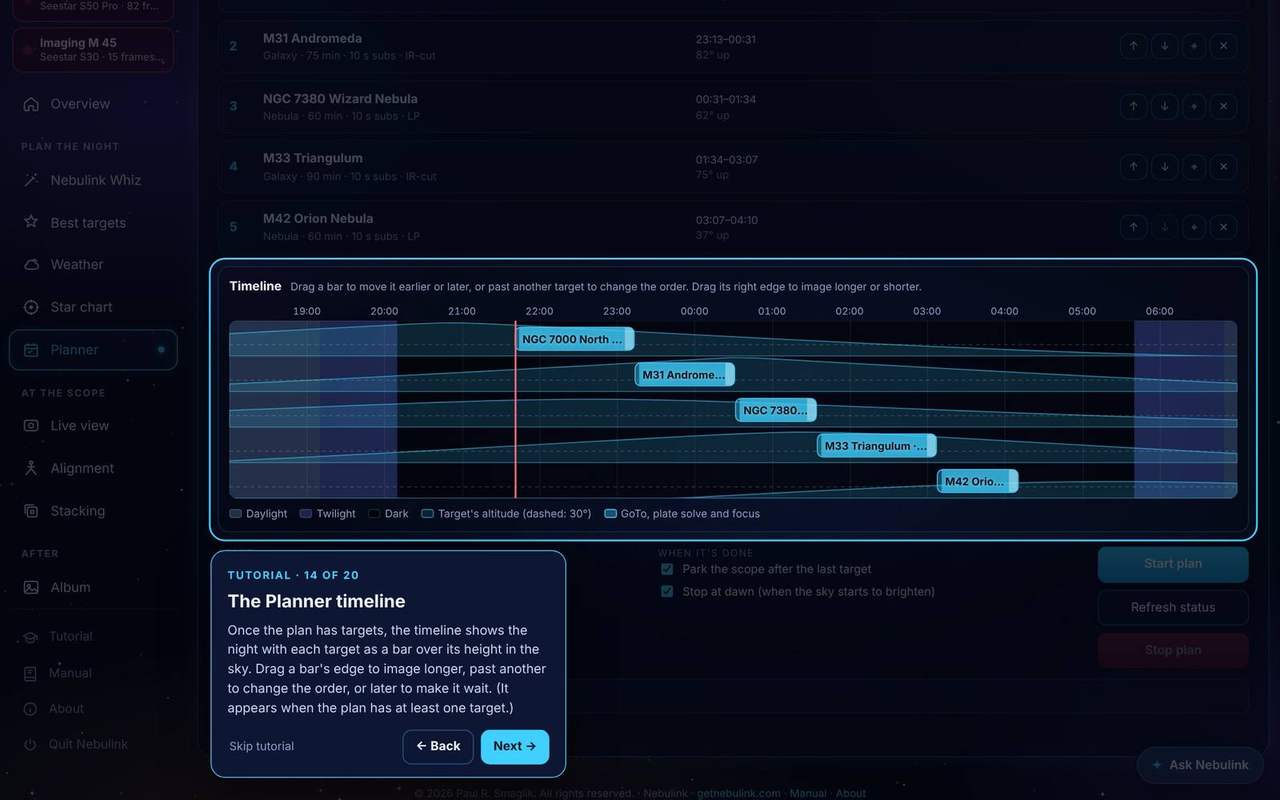
New to Nebulink? Click Tutorial and it walks you through the app one part at a time: planning, the timeline, Live view, the Album and the Helper. It only opens pages; it never moves your scope.
- About 20 short steps, with Back and Skip
- A red "Imaging" box on every page shows what each scope is doing
- Polar alignment says which way to move the wedge: up, down, left or right
Say it, don't click it
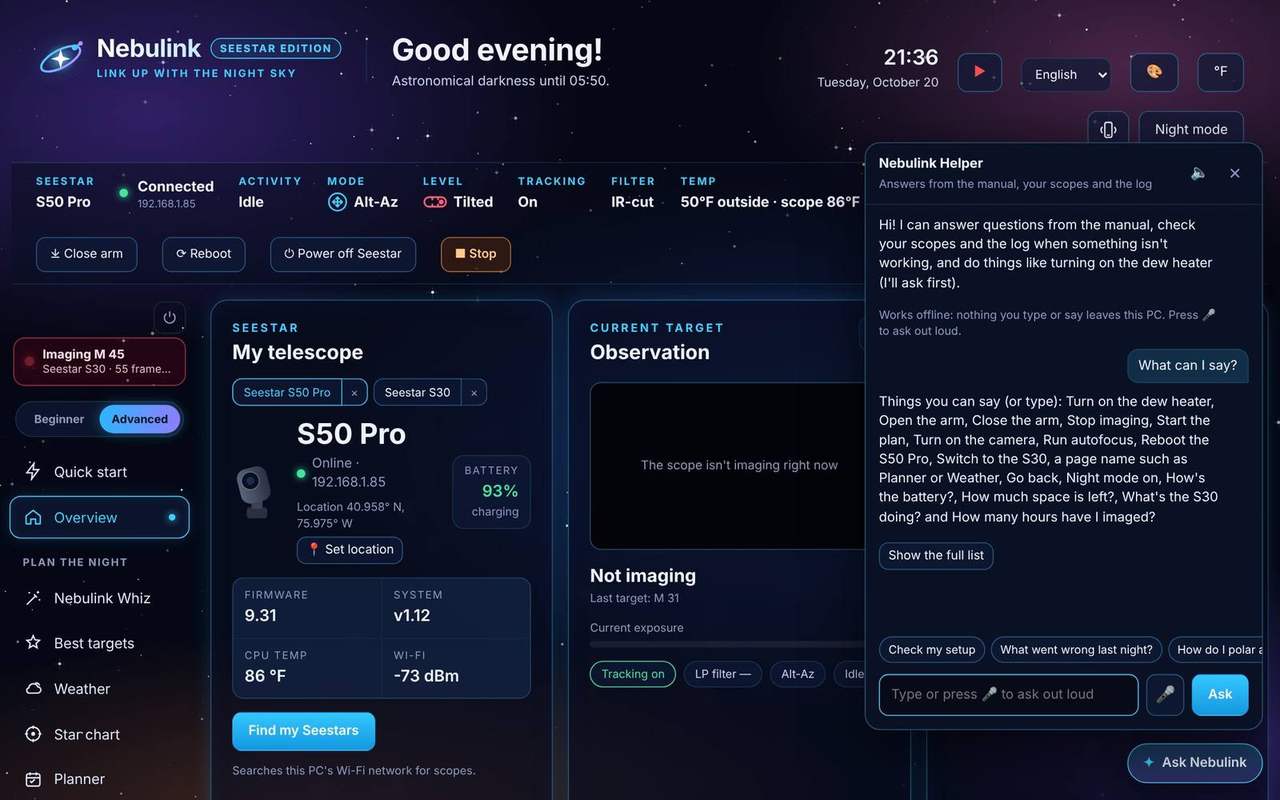
Press 🎤 in Ask Nebulink and say what you want: "Open the arm", "Turn on the dew heater at 60%", "Show me the Planner", "How's the battery?" Typing the same words works too. The speech is recognized on your PC, with no internet.
- Control the scope, move around the app, jump to a page or ask a quick question
- Anything that moves or changes a scope asks you to press Do it first
- Press 🔈 to hear the answers; English only for now
- Ask "What can I say?" for the list, or open it in the manual
Nebulink Helper
Ask Nebulink. It knows your scopes.
Press ✦ Ask Nebulink on any page and type what you want to know or do. The Helper answers from the manual, looks at your scopes and Nebulink's log when something goes wrong, and handles the controls for you.
- "Why does my S50 Pro keep dropping out?" It checks the Wi-Fi signal, battery and storage, reads the last few hours of the log, and tells you what happened and what to do.
- "Turn on the dew heater at 60%." It does it, after you press Do it. It never changes anything on a scope without asking.
- "How do I polar align?" The right part of the manual, with a link straight to it.
Works offline: nothing you type leaves your PC. Still stuck? Send log to support sends your log and a note to us in one click.